
Download SmartCapture – Free Screen Capture Tool for Windows, Mac, Android & iOS
SmartCapture is a robust and user-friendly screen capture application designed for users who need a reliable tool to capture, edit, and share screen content across multiple platforms. Whether you're creating tutorials, documenting software bugs, or saving important visual information, SmartCapture delivers powerful functionality without the complexity. With support for rectangular captures, full-window screenshots, object-based selection, and integration with Twain-compatible devices like scanners and digital cameras, SmartCapture stands out as a versatile solution for both casual and professional users.
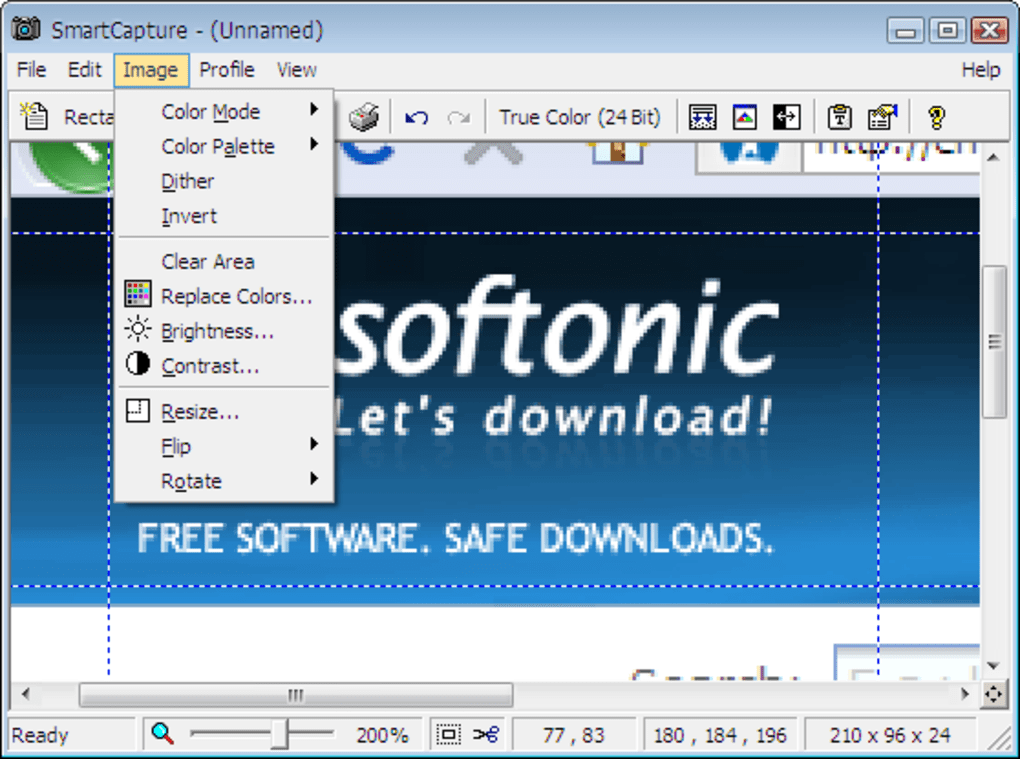
The software offers seamless post-processing options, including cropping, resizing, color adjustments, and exporting to popular formats such as PNG, JPEG, BMP, and GIF. It also supports advanced editing features like dithering, color replacement, image inversion, and optimized palettes. Designed for multi-monitor setups, SmartCapture ensures smooth performance across complex display environments.
With built-in automation, customizable capture profiles, and a multi-level undo system, this software streamlines the entire workflow. Recent updates have improved internal stability and added an automatic update check, ensuring you always have the latest version. SmartCapture is a secure, lightweight, and efficient tool that combines ease of use with professional-grade capabilities.
Key Features of SmartCapture
- Multi-Mode Capture: Capture full screens, specific windows, rectangular areas, or individual objects with precision using intuitive selection tools.
- Twain Device Integration: Directly import images from scanners, digital cameras, and other Twain-compatible hardware—ideal for digitizing documents and photos.
- Advanced Image Editing: Edit captured images with tools for cropping, resizing, rotating, flipping, color replacement, inversion, and dithering.
- Format Flexibility: Save screenshots in multiple formats including PNG, JPEG, BMP, GIF, and more—perfect for web, print, or document use.
- Multi-Monitor Support: Seamlessly capture content across multiple displays with consistent performance and accurate positioning.
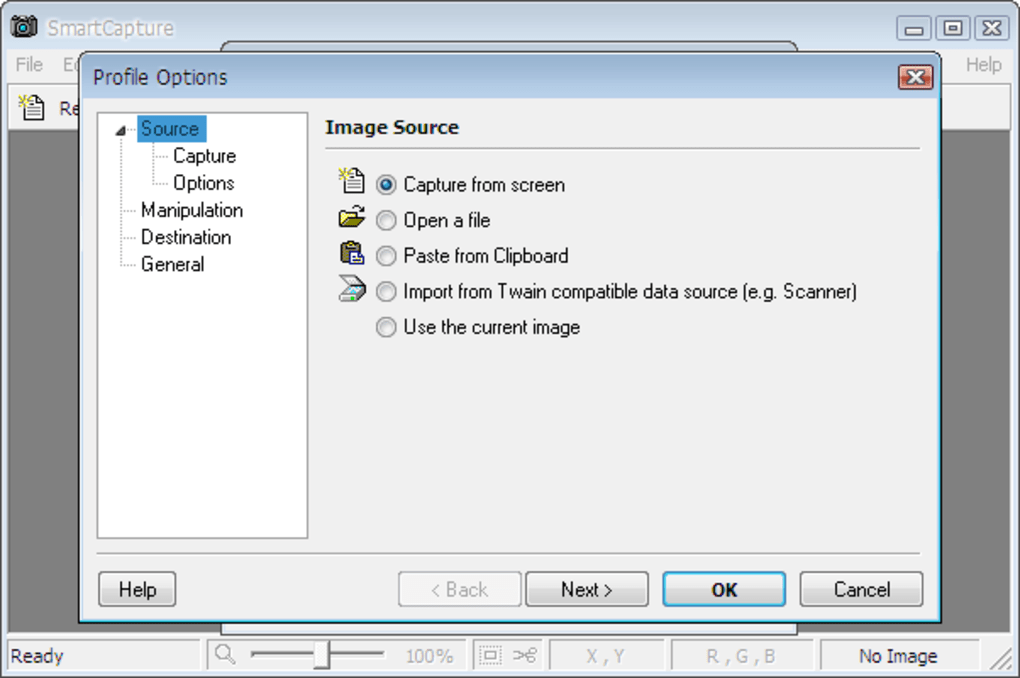
- Automation & Profiles: Use capture wizards and customizable profiles to automate repetitive tasks and maintain consistency across projects.
- Clipboard & Sharing Options: Copy screenshots directly to the clipboard, send them via email, or insert them into MS Word or image editors with one click.
- Multi-Level Undo: Revert changes step-by-step, giving you full control over edits without fear of irreversible mistakes.
- Automatic Update Check: Stay up-to-date with the latest improvements and security patches through built-in update notifications.
How to Install and Use SmartCapture
Getting started with SmartCapture is simple and fast. Begin by visiting the official website and downloading the installer for your operating system—Windows, Mac, Android, or iOS. The installation process is straightforward: run the downloaded file, follow the on-screen prompts, and complete the setup in under a minute.
Once installed, launch the application, and you’ll be greeted with a clean, intuitive interface that makes navigation effortless. To capture your screen, click the main capture button or use a customizable keyboard shortcut. You can choose between full-screen capture, window capture, or free-form rectangle selection.
For more advanced users, the object capture mode allows you to isolate specific UI elements or graphical objects with precision. If you're using a scanner or digital camera, SmartCapture automatically detects Twain-compatible devices, enabling direct image import without switching applications. After capturing, the built-in editor lets you crop, resize, adjust colors, or apply filters.
You can also apply optimized color palettes for web use or reduce file size without sacrificing quality. To share your image, use the one-click export options—send via email, copy to clipboard, or insert into Word documents. The software also supports batch processing for multiple captures, making it ideal for content creators, educators, and technical support teams.
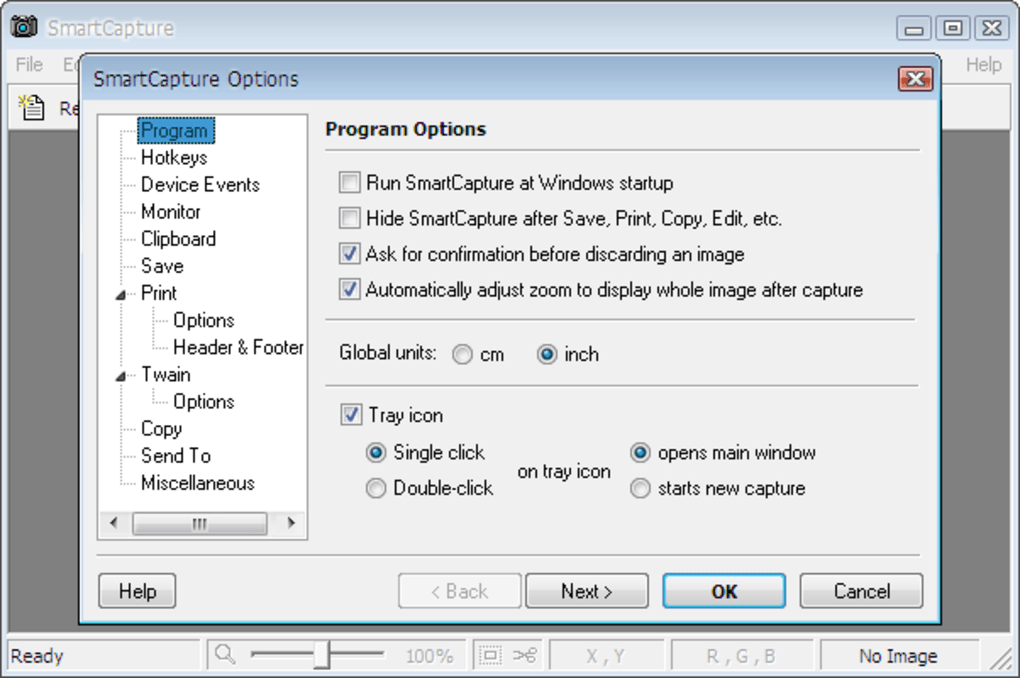
For power users, setting up capture profiles allows you to save preferred settings, such as format, location, and editing preferences, so you don’t have to reconfigure each time. Regular updates ensure the software remains secure and compatible with the latest OS versions.
Compatibility & System Requirements
SmartCapture is designed to work across a wide range of devices and operating systems, making it one of the most accessible screen capture tools on the market. It is fully compatible with Windows 10, Windows 11, macOS Monterey and later, Android 8.0+, and iOS 14+ devices. This cross-platform availability ensures that whether you're working on a desktop, laptop, tablet, or smartphone, you can capture and edit screen content with ease.
The software is lightweight, requiring minimal system resources, so it runs smoothly even on older machines. For Windows and Mac users, SmartCapture integrates seamlessly with the native clipboard and file system, allowing for instant sharing and storage. On Android and iOS, the mobile app offers touch-optimized controls and gesture-based navigation for intuitive operation.
The app supports high-resolution displays, including 4K and Retina screens, ensuring crisp, clear captures. Additionally, SmartCapture supports multi-monitor setups, automatically detecting and adapting to your display configuration. This is especially useful for professionals managing multiple workspaces or using extended desktops.
The application also works with external hardware such as scanners and digital cameras through Twain drivers, expanding its utility beyond screen capture. Whether you're a student taking notes, a developer documenting bugs, or a marketer creating social media content, SmartCapture adapts to your workflow. With regular updates and automatic check-ins, the software remains secure and optimized for future OS updates.
The developers prioritize backward compatibility, ensuring older versions continue to function while new features are introduced.
SmartCapture Pros and Cons
Pros
- Extensive capture modes including full screen, window, rectangle, and object selection.
- Supports Twain-compatible devices for direct image import from scanners and cameras.
- Advanced editing tools like dithering, color replacement, and image inversion.
- Multi-monitor and multi-platform support (Windows, Mac, Android, iOS).
- One-click sharing to email, clipboard, MS Word, and image editors.
- Customizable capture profiles and automation for repetitive tasks.
- Automatic update check keeps the software secure and up-to-date.
- Lightweight and fast, with minimal impact on system performance.
Cons
- Does not allow saving of resize profiles—each resize must be manually defined.
- Advanced features may have a learning curve for absolute beginners.
- Limited built-in cloud integration compared to competitors.
- Mobile app lacks some desktop-level editing tools.
- No built-in OCR functionality for text extraction from images.
Frequently Asked Questions (FAQ)
Is SmartCapture free to download and use?
Yes, SmartCapture is available for free download on Windows, Mac, Android, and iOS. The core capture and editing features are fully functional without any subscription or payment. While advanced automation tools are included, there are no hidden costs or trial limitations.
Can I use SmartCapture with multiple monitors?
Absolutely. SmartCapture supports multi-monitor setups and automatically detects your display configuration. You can capture content from a single monitor or across multiple screens with precise control over selection areas.
Does SmartCapture work with scanners and digital cameras?
Yes, SmartCapture integrates with Twain-compatible devices, including scanners and digital cameras. This allows you to import images directly into the application without switching between programs.
How often does SmartCapture update?
SmartCapture includes an automatic update check feature that notifies you when a new version is available. Updates are released regularly to fix bugs, improve performance, and add new features.
Can I edit screenshots after capture?
Yes, SmartCapture offers a full suite of editing tools, including cropping, resizing, rotating, flipping, color adjustments, dithering, and more. You can also apply optimized color palettes and save images in multiple formats.
Final Verdict: Why You Should Download SmartCapture Today
If you're searching for a secure, reliable, and feature-rich screen capture tool that works across all major platforms, SmartCapture is an excellent choice. It combines powerful capture modes, advanced editing capabilities, and seamless sharing options in a lightweight, user-friendly package. Whether you're a student, educator, developer, or content creator, SmartCapture simplifies the process of capturing and managing visual content.
The ability to integrate with scanners and cameras adds unique value, making it more than just a screen grabber. While it lacks profile-saving for resizing and some cloud features, its strengths far outweigh these minor limitations. With automatic updates, multi-monitor support, and cross-platform compatibility, SmartCapture is a future-proof tool.
Download it today and experience a smarter way to capture, edit, and share your screen content—completely free.
Download SmartCapture now and take control of your screen capture workflow with ease, speed, and confidence.







